Quick answer: "Pinterest Analytics is not working" can mean several different things: you do not have the business account Analytics requires, you are reading a report that only counts published Pins, the account or data is too new, or a filter is hiding what you are looking for. Before you change anything, name the exact screen and number that is missing, because organic Pin metrics, claimed-website data and conversion reporting have different prerequisites and different fixes.
This guide uses Pinterest's Business Help Center for product information. The troubleshooting checks are suggestions for investigating the symptoms, not confirmed diagnoses. Information from archived guidance is labeled.
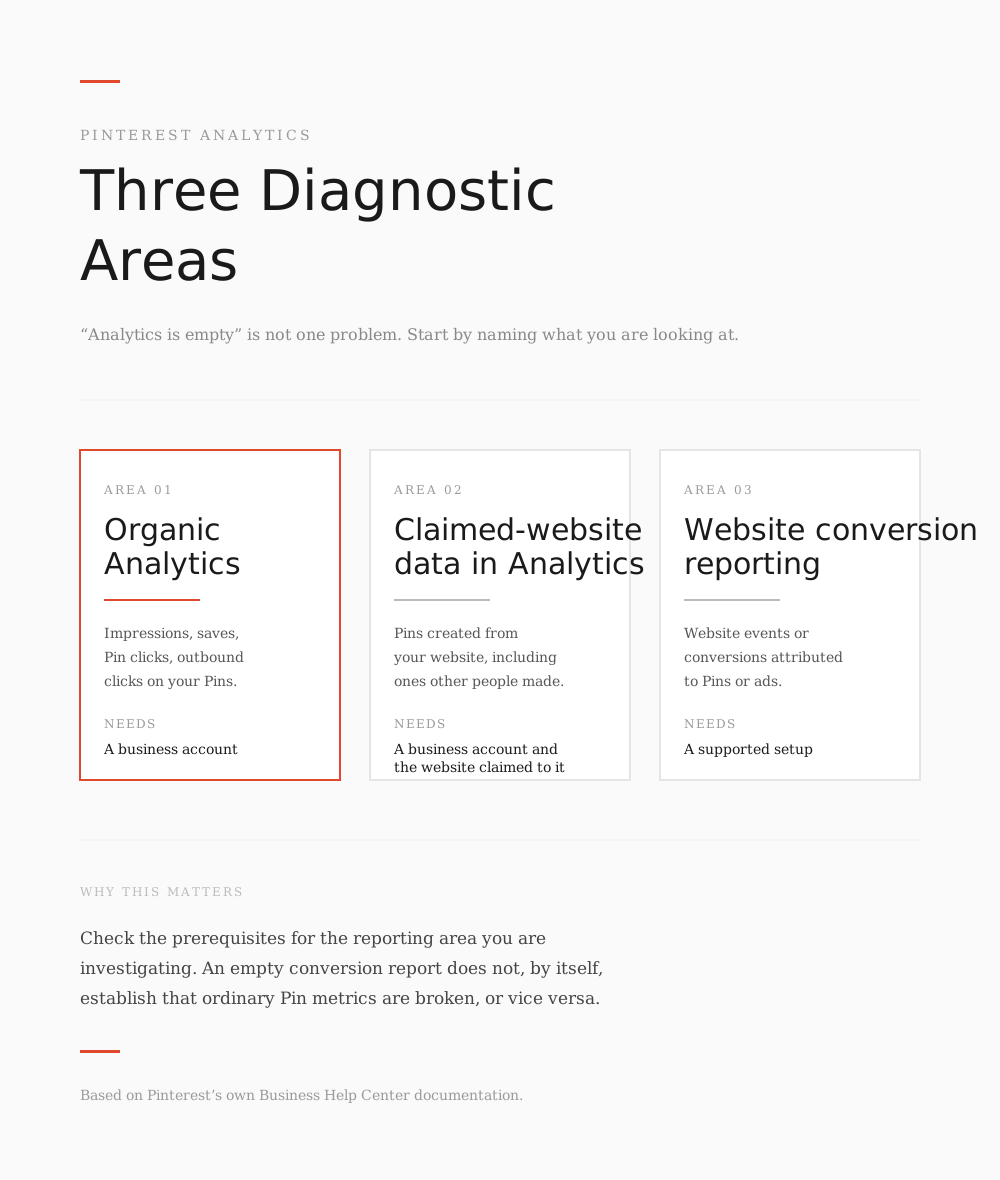
Start Here: Which Report Is Actually Empty?
Start by naming the exact report and number that is missing. "Analytics is empty" can refer to different reporting systems.
These are three diagnostic areas, not three standalone Pinterest reports. Claimed-website data is part of Analytics.
| What you are looking at | What it reports | What it needs |
|---|---|---|
| Analytics → Overview, and Pin stats | Impressions, saves, Pin clicks and outbound clicks on your Pins | A business account |
| Claimed-website data inside Analytics | Pins created from your website, including ones other people made | A business account and the relevant website claimed to that account |
| Website conversion reporting | Website events or conversions attributed to Pins or ads, depending on the report | A supported conversion-data setup; requirements vary by report—see Check 8 |
An empty conversion report does not, by itself, establish that ordinary Pin metrics are broken, or vice versa. Identify the reporting area, then work through the checks that apply to it.
Check 1: Do You Have a Business Account?
Pinterest's Review Pinterest Analytics article states the requirement plainly: "To view Pinterest Analytics, you need to set up a business account."
Two more access notes from Pinterest's own pages are worth knowing before you assume something is broken. The Analytics article says "Analytics may only be available to account owners above a certain age", and the Review your Pin stats page opens with "Some of these options may only be available to account owners above a certain age." If the Analytics entry is missing rather than showing empty charts, confirm that you are signed into the intended business account and note Pinterest's age-related access caveat.
What to check: open the menu at the top-left on desktop, or your profile picture then the menu icon in the app, and see whether Analytics appears at all. A missing menu item and a visible screen with empty charts are different symptoms. Neither identifies the underlying cause by itself.
Check 2: Are You Only Seeing Published Pins?
This is one documented reason an account can appear to have an empty Overview, and it is a deliberate Pinterest default rather than a fault.
Pinterest's Pin performance and distribution article says Analytics "shows only published Pins data by default" and asks you to "check the box next to" the saved-content filter "to include stats for Pins you've saved that are not linked to any of your claimed domains." The same article states that "Pinterest no longer defaults to showing both published and saved Pins data."
If the statistics you expect belong to saved Pins that are not linked to a claimed domain, the default Overview can omit them.
What to check: open the filters above your Analytics data and look for the saved-content option. Tick it, then re-read the same date range. If numbers appear after you include saved Pins, the filter was affecting what the Overview showed.
Check 3: Is the Account or the Data Too New?
Pinterest's archived Trouble with Pinterest Analytics article gave the following historical timings. It said data can take "up to 48 hours" to load, that a newly converted business account can only show data "from the date it was converted onwards", that "new data should start loading after two days" and that you should see "a full week's worth of data in 10 days."
Treat those numbers as historical guidance, not a current guarantee. Pinterest's current Analytics page documents real-time estimates for the last 48 hours, not a deadline by which every metric must load. It also warns that estimates can decrease: "these real-time metrics are estimates and subject to change. As a result, they might decrease."
That sentence also answers a separate complaint. If a number you screenshotted yesterday is lower today, Pinterest's own documentation says real-time estimates can go down. It is not proof of a penalty.
On the content side, Pinterest's distribution article says "There's no set engagement window for Pins, so it's possible that a Pin can gain engagement hours, days, months, or even years after it's first published." Zero engagement on a new Pin is not evidence that reporting is broken.
What to check: note when you converted to a business account, the date range selected and whether you are viewing real-time estimates. Do not use Pin age or the number of Pins alone to decide whether reporting is broken.
Check 4: Are Filters or the Date Range Hiding It?
Both Analytics and Pin stats offer filters that can change which data you see. The Pin stats page lists the controls: "Date range, Content type, Device or Source."
One filter interaction is documented and genuinely surprising. The Analytics article notes: "Real-time analytics are not available for audience metrics or when you use the content type filter." So applying a content-type filter changes what recent data is available to you, which can look exactly like missing data.
What to check: use a wider date range and remove restrictive filters. For recent Overview data, check Use real-time estimates; remove content-type, age and gender filters, and turn off data splits. Real-time audience metrics are unavailable. Retest one setting at a time, using the controls available on that screen.
Check 5: One Pin, or the Whole Account?
If the account-level Overview has numbers but a specific Pin looks wrong, you are in a different report with its own rules.
Pinterest explains how Pin stats are built: "We calculate Pin stats by aggregating the data for all Pins that share an image and if applicable, a URL." Because Pinterest aggregates stats that way, repeated use of the same image can affect how you interpret an individual Pin's reported stats. Separately, Pinterest advises against repeatedly saving or uploading duplicate content.
One more gap is documented rather than accidental: for the boards a Pin was saved to, Pinterest says "if your Pins have been saved to a private board, you will not see the board details here."
What to check: on desktop, open your profile, then Created, then the Pin, then See more stats. Compare that against the account Overview for the same date range before concluding either one is wrong.
Check 6: Website Data, Claiming and Redirects
A claimed website is not a prerequisite for ordinary Pin analytics. Claiming adds access to website-related Pin analytics, including Pins other people create from your site.
Pinterest's distribution article says to claim your website "to get access to analytics for the Pins you publish from your site, as well as the analytics on Pins that other people create from your site", and that "without claiming and verifying your website, all content you save will be considered saved content, and will not be highlighted in your Analytics Overview page."
Read together with Check 2, this explains one way an Overview can contain less data than expected: statistics for content classified as saved may be excluded from the published-only view.
Three constraints from Pinterest's Claim your website page explain why claiming sometimes cannot be the answer:
- You must own the domain, subdomain or subpath and be able to edit the source code, so you are "unable to claim most social accounts and online stores hosted on marketplaces like Etsy, eBay and Amazon."
- "A website can only be claimed by one Pinterest account." Check whether the domain is already claimed by another account.
- Each claimed website "will be treated as a separate domain (unless they route to the same place)".
The archived troubleshooting article added a redirect case that is easy to miss: you might not see data "if there hasn't been a significant volume of Pins coming from your website or if your verified website redirects to another URL."
What to check: Pinterest's help page gives Settings → Claimed accounts → Websites for viewing existing claims. It gives Settings → Link to Pinterest → Claim next to Websites for starting a claim. Confirm the claimed address and which account holds it, and note whether the address redirects elsewhere.
Check 7: No Data from the Save Button
If the specific thing missing is activity from the save button on your own site, the archived article described a possible explanation: "Data will only be recorded if you are using the official" Pinterest save button, and "if you aren't seeing data, this might mean that your site is using a third-party Save button." This is historical guidance about Save-button data, not a current explanation for every missing Pinterest metric.
What to check: identify whether your site uses Pinterest's official Save button implementation, rather than inferring that from a plugin's name or the button's appearance.
Check 8: Conversions Are a Separate System
Website conversion reporting is different from ordinary Pin impressions and saves. Pinterest's Track conversions with the Pinterest tag page places event history under Manage business → Conversions and conversion columns in Campaign manager. Pinterest also documents Conversion insights under Analytics, covering organic and paid conversions.
The Pinterest tag is not the only way to send conversion data: Pinterest also documents the Conversions API. Requirements differ by report. Installing the tag requires a business account and an advertiser account; the Conversion insights page specifies a healthy Pinterest tag.
A regional notice on a help page does not, by itself, establish why an individual account has no conversion data. Verify the availability and setup of the reporting method you actually use.
A conversion tag is not a prerequisite for ordinary Pin impressions and saves. Do not start an ad campaign merely to test those metrics.
Check 9: App Versus Desktop
Pinterest documents separate routes to Analytics on desktop and in the app, and separate routes mean a menu you cannot find on one surface may be in a different place on the other rather than missing. If charts load on desktop but not in the app, confirm that both are using the same business account, date range and filters. Record the difference; it does not, by itself, establish an app-session or version problem.
When Your Numbers Disagree with Google Analytics
Pinterest's archived troubleshooting article described why its click totals could exceed another tool's recorded visits: a Pinterest click did not necessarily produce a loaded, recorded website visit. It also noted that visitors could leave before a site's tracking code recorded the visit.
First identify the exact Pinterest metric and the exact Google Analytics metric. Pinterest reports Pin clicks and outbound clicks separately, so do not treat every Pinterest click as a website visit.
Compare consistent date ranges and definitions. A discrepancy alone does not prove either tool is faulty—or correctly configured.
What Zero Data Does Not Prove
Zero or missing data does not, by itself, establish a cause. Keep these limits in mind:
- Zero data does not prove your account is restricted or hidden. Pinterest's own distribution article attributes performance changes to things like language, location, seasons, formats and trending topics.
- Do not treat the archived loading estimates as current deadlines. The current 48-hour reference describes the real-time estimate window.
- Zero data by itself does not establish which underlying issue is causing the missing data.
- A conversion tag is not required for organic impressions and saves.
- The steps above do not guarantee a fix. Some cases genuinely end with waiting, or with contacting Pinterest.
If You Have Worked Through All Nine Checks
After completing the applicable checks, you have a record of the account, report, settings and symptoms; this does not rule out every possible cause. If the problem remains, the next step may be Pinterest support or account-specific investigation rather than another settings change.
Record what you checked, the date range, filters, device and any error message so you can describe the problem accurately.
Where to Go Next
- To read the numbers once they appear, start with Pinterest analytics, explained.
- If impressions specifically are the number sitting at zero, what impressions actually count sets the expectation.
- If Pin clicks are the number that looks wrong, what a Pin click measures explains why it differs from outbound clicks.
- Once data is flowing again, how to compare two Pins fairly covers using the same window and filters.
Frequently Asked Questions
Why is my Pinterest Analytics empty?
One documented reason is that Analytics "shows only published Pins data by default", so saved Pins that are not linked to a claimed domain are excluded until you tick the saved-content filter. Check that setting, business-account access and the date range before assuming a fault.
Do I need to claim my website to see Pinterest Analytics?
No. Analytics requires a business account, not a claimed website. Claiming adds access to website-related Pin analytics: Pinterest says that without claiming and verifying your website, "all content you save will be considered saved content, and will not be highlighted in your Analytics Overview page."
How long does Pinterest Analytics take to update?
The current Overview guidance cited here does not promise a fixed update deadline. It describes real-time estimates for the last 48 hours, which can change. The older loading estimates discussed in Check 3—including up to 48 hours and a full week of data in 10 days—come from archived guidance, not a current guarantee.
Why did my Pinterest impressions drop overnight?
Pinterest's current Analytics page says real-time metrics are estimates that are "subject to change" and "might decrease", so a lower figure than yesterday does not by itself establish why the figure changed. Compare a completed, wider date range with the same filters before reacting.
Why don't my Pinterest clicks match Google Analytics?
First check which Pinterest click metric and which Google Analytics metric you are comparing. Pinterest reports Pin clicks and outbound clicks separately. Its archived troubleshooting article noted that a click may not become a website visit recorded by another tool. Differences alone do not confirm a tracking fault or prove that both tools are configured correctly.
Sources
- Pinterest Business: Review Pinterest Analytics
- Pinterest Business: Pin performance and distribution
- Pinterest Business: Review your Pin stats
- Pinterest Business: Claim your website
- Pinterest Business: Track conversions with the Pinterest tag
- Pinterest Business: Install the Pinterest tag
- Pinterest Business: Review Conversion insights
- Pinterest Business: The Pinterest Conversions API
- Pinterest Business (archived): Trouble with Pinterest Analytics
Sources checked October 5, 2026.